Recently I reformatted my computer so I could write an article about partitioning a hard for the OS and data. After installing my fresh copy of XP (yeah, I’m not downgrading to Vista), I noticed my Volume Control icon in the system tray wasn’t showing. This reminded me of a past experience with this issue. It turns out that some people doesn’t see the icon in the system tray, even if the option to show it is in fact enabled in the control panel:
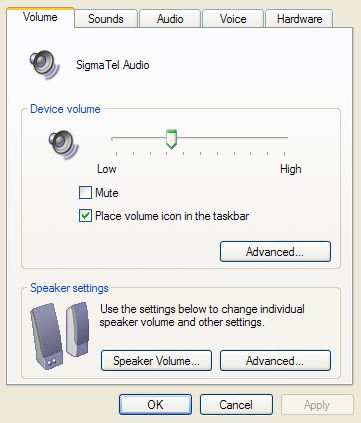
(click image to enlarge)
There’s an easy solution to this problem. The Volume Control icon is controlled by systray.exe, so you just need to add that program to your registry startup folder. Note: do not make a shortcut to systray and put it in your Start Menu startup folder; it won’t help.
Download the .reg file
Download the .reg file and run it to automatically add the key to your registry.
…or…
Manual Method
If you want to manually modify the registry, here’s how. Open regedit (Start > Run > regedit) and navigate to HKEY_LOCAL_MACHINE\SOFTWARE\Microsoft\Windows\CurrentVersion\Run
Right-click in the right-side and choose New > String Value.
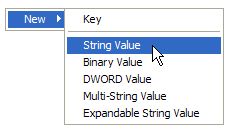
Give it a simple name, like Systray. For the value, enter “C:\WINDOWS\system32\systray.exe”

Brilliant, works like a charm
This just illustrates why Windows SUCKS and the Mac rules. If I wasn’t a .Net developer I would NEVER use Winblows.
Vista was XP with a prettier face and some extra features that just introduced more bugs. They have a lot of ground to make up with Windows 7.